Raycaster, Cursor, and Registering Components
Explore how to implement interactivity in WebXR with A-Frame by understanding cursor and raycaster components. Learn to register custom components and handle events for engaging VR and 2D experiences.
The usefulness of any environment is defined by the level of interactivity it offers. This is why a fair understanding of how we interact with objects around us is essential.
Introduction
In this section, we’ll learn about interaction concepts in A-Frame to make our virtual environments interactive and fun. We’ll further learn to employ A-Frame’s cursor and raycaster techniques to add interactivity to our environments.

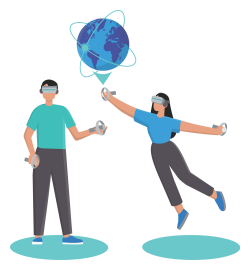
Interactions in A-Frame are event based. These events are emitted by specific components that describe synthetic events.
Cursor
The


Similarly, a cursor in a 3D space lets us point and select items along the x-, y-, and z-axes in a 3D environment. It visually represents the user’s gaze or pointer in the virtual 3D scene. Imagine you’re wearing a headset to experience a VR scene, and a pointer or cursor is displayed exactly in the direction of your gaze; you can gaze at different locations within the VR scene, and the pointer position is updated accordingly. It’s usually a small circular ring to not block the user’s view within the VR scene. We can customize the cursor by modifying its properties, such as its color, size, and behavior.
By default, the cursor emits a click event when the user triggers an interaction, such as pressing a button on a controller while looking at an object. This event can be used to trigger actions, such as changing the appearance or position of an object, playing a sound, or navigating to another part of the scene.
Events
The WebXR experiences can either be viewed on a conventional 2D desktop screen or can be launched as a 3D VR experience on a VR headset. In 2D mode, we can interact with the experience via conventional web-based controls by moving the cursor to the desired button or asset and then clicking on it to register our interaction.
And if the user chooses to view the experience in VR, they’ll have to press the “VR” button on the bottom right corner of their WebXR website, which will launch the VR experience onto the headset, and the cursor will appear in the form of a
The cursor primitive events will behave differently for 2D and 3D experiences. WebXR listens to the following events:
A
clickevent is emitted by the cursor when the user triggers an interaction, like pressing a controller button while looking at an object. Theclickevent enhances interactivity for VR environments.A
fusingevent is triggered on the cursor andintersected entity An "intersected entity" is the object in the VR/AR scene that the cursor's ray is currently pointing at, enabling interactive actions. fuse-based A "fuse-based" cursor is a type of cursor in A-Frame that triggers interactions after a fixed duration of looking at an object, providing a simplified way of interaction for certain experiences. A
mousedownevent is triggered on both the cursor and intersected entity (if any) during interactions on the canvas element.A
mouseenterevent is triggered on the cursor and intersected entity (if any) when the cursor intersects with an entity.A
mouseleaveevent is triggered on the cursor and intersected entity (if any) when the cursor no longer intersects with the previously intersected entity.A
mouseupevent is triggered on the cursor and intersected entity (if any) upon themouseupevent on the canvas element. We use theupEventsproperty to listen to additional events on the entity when we use other devices, such as controllers, to trigger themouseupevent.
Registering components
We learned that A-Frame follows the entity-component-system design pattern. This means we can create as many custom components as are required to define the behavior of our entities. A-Frame provides a way to register components that we can attach to entities in the scene to mimic the behavior we want.
We can either write our JavaScript code in a separate file and include it, or we can just write components in the script tag.
To register a component in A-Frame, we use the AFRAME.registerComponent() method. Heres an example of how to register a custom example named component named:
AFRAME.registerComponent('example', {schema: {abc: 123,},init: function () {console.log('Example component initialized');},update: function () {console.log('Example component updated');},tick: function () {console.log('Example component tick');},remove: function () {console.log('Example component removed');},});
In this example, we’re defining a component with three lifecycle methods: init(), update(), and tick().
The
schemaobject specifies and explains the properties of the component. It utilizes a list of key-value pairs to represent the properties, and the corresponding values, of the component.The
init()method is called when the component is first attached to an entity.The
update()method is called whenever one of the component’s properties is updated.The
tick()method is called for every frame.The
remove()method is called when the entity to which the component is attached is removed.
The first argument to AFRAME.registerComponent() is the name of the component, which should be a unique string. The second argument is an object that defines the component’s properties and lifecycle methods.
Once you’ve registered our component, we can attach it to an entity in our HTML markup by including the component’s name as an attribute. For example:
We’re able to see the logs in our console by opening the browser’s DevTools when we run the following example:
Let’s take a look at an example of cursor interaction.
Example: Cursor interaction
This example demonstrates the use of the <a-cursor> primitive.
We first create a camera rig that can be thought of as an entity holding the camera. So, whenever we want to move the camera, we change the position of the rig. This is especially important with VR headsets in virtual scenes because with the WebXR Device API, when we move around in the virtual world with the headset on, the headset’s position changes.
Note: If we try to change the position of the camera programmatically, it can cause a conflict with the position of the headset. So, we don’t perform direct transformations on the camera because it conflicts with the WebXR Device API's data.
To fix the cursor to the screen so the cursor is always present no matter where we look, we place the
<a-cursor>as a child of the active camera entity. By default, the cursor is configured to be used in a gaze-based mode and will register user input via mouse or touch.We set the
rayOriginproperty tomousebecause we’re doing development with a mouse and keyboard. We can configure variables to other input devices as well.By default, the
rayOriginproperty is set tomousein A-Frame. This choice is particularly useful during development when working with a mouse and a keyboard. When therayOriginpeoperty is set tomouse, the cursor generates a ray that originates from the current position of the mouse pointer in the browser window. As a result, interactions with virtual objects in the 3D scene occur based on the movement of the mouse.This design choice aligns with the typical 2D interaction model commonly used during development, making it intuitive to manipulate and interact with 3D elements using familiar mouse and keyboard inputs.
We also register a
color-clickcomponent that listens for the click event on the entity to which it is attached. Upon clicking, we set the current entity’scolorproperty toredby using thethis.el.setAttribute('material', 'color','red')method.We also listen to the
mouseleaveevent on the entity, and when the mouse has left, we change thecolorproperty back toyellow.
It’s pretty clear how <a-cursor> works; now, let’s move on to the raycaster component.
The raycaster component
The raycaster component in A-Frame is a built-in component that allows developers to add interactive behavior to entities in the 3D scene. It works by casting a ray from a specific point in the scene, such as the user’s position, in a specified direction, such as the direction of the user’s gaze, and detecting intersections with other entities in the scene.
The cursor component builds on top of the raycaster component with all the details and events of the intersection. Behind the scenes, the cursor events use the raycaster component’s intersection events.
The raycaster component can also be configured with different attributes, such as the showLine, lineColor, direction, and objects filters. The ray direction can be set to the direction of the user’s gaze, controller, or any other vector in the scene. The objects filter can be used to limit the types of entities that the raycaster will detect.
Example: Raycast interaction
In this example, we mimic the interaction that we did in the cursor example with the raycaster component.
We register a component called
collider-checkand attach it to the camera. Now, the camera will listen forraycaster-intersectionevents, and whenever it detects this event, it printsPlayer hit something!in the browser console.We register another component called
intersected-checkthat checks for intersections on the intersected entity. In this component, we add event listeners for two events:raycaster-intersectedis triggered on the intersected entity.raycaster-intersected-clearedis triggered when the entity is no longer being intersected by theraycastercomponent.
Both components list the
raycastercomponent in their[dependencies]list because the components are dependent on theraycastercomponent and use its events. Component names specified in the dependencies array will be initialized left to right before initializing the current component.We’re now able to appreciate the resemblance of the intersection events emitted by the
raycastercomponent and how they’re used by thecursorcomponent to check for mouse events.We modify the
raycasterproperties as follows:showLineis set totruethat shows the raycasting line in the 3D scene. We can set the color of the line using thelineColorproperty.objectsis used to whitelist the entities for which theraycastercomponent scans the environment. We set it to.collidablein order to include all objects with that class name.We modify the
classproperty tocollidablefor the entity we want to be intersected. Because theclassproperty of the box on the left is not set tocollidable, it doesn’t interact with theraycastercomponent.
That’s it for the raycast interaction example.
Conclusion
In conclusion, interaction is a crucial aspect of XR and A-Frame development, providing benefits such as enhancing user engagement, providing feedback, supporting learning and training, creating personalized experiences, and increasing immersion. We learned about the fundamental component behind the interactions in A-Frame, the raycaster component, and its application in the cursor component. These components enable developers to create interactive and immersive experiences by detecting intersections between rays and entities in the 3D scene.