Web Fonts, Rounded Corners and Rounded Images
Explore how to enhance your web project by adding Google web fonts like Montserrat, apply rounded corners using border-radius, create perfectly round images, and master the display property to control element behavior in CSS. This lesson helps you understand spacing, centering techniques, and font styling to build a polished sign-up page.
We'll cover the following...
- Introducing Web Fonts
- How to Include the Web Font
- Rounded Images and Corners
- Rounded Corners
- Applying Rounded Borders to the Project
- How to Make Rounded Images with CSS
- Margin, Padding and Spacing
- How to Center the Image
- Display Types in CSS
- Why Does this Matter?
- The Fact
- A Quick Look at the Behaviour of Block and Inline elements.
- Centering the Text within the <section> tag
- Font Styling
- Line Height
- Conclusion
Most times, the default fonts on the user’s device will not suffice. You may not like the feel of those, or want something different.
It appears we can do so with web fonts!
We will continue the project from where we stopped in the previous lesson.
Introducing Web Fonts
There are lots of web font providers out there. For the sake of our project, Google font will do!
The Google font catalogue has well over 800 fonts! What more do you need?
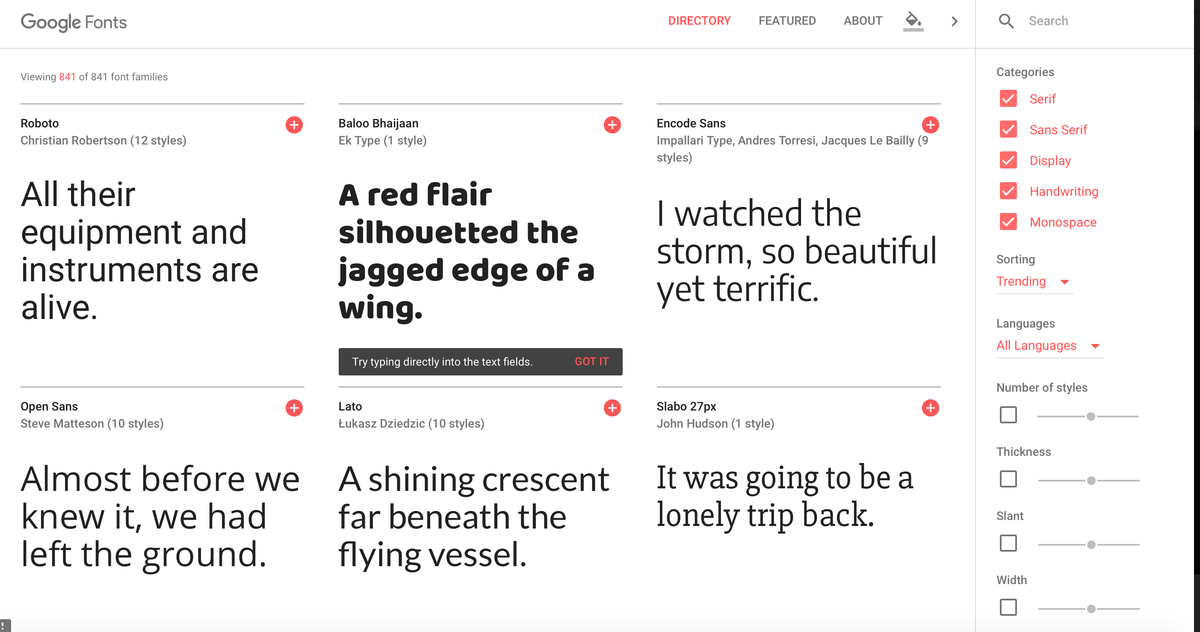
The web font we will introduce into the project is called, Montserrat.
You may take a look at it here
Select the font from the Google catalogue, and you get to see the “how-to” include this font in your project widget.
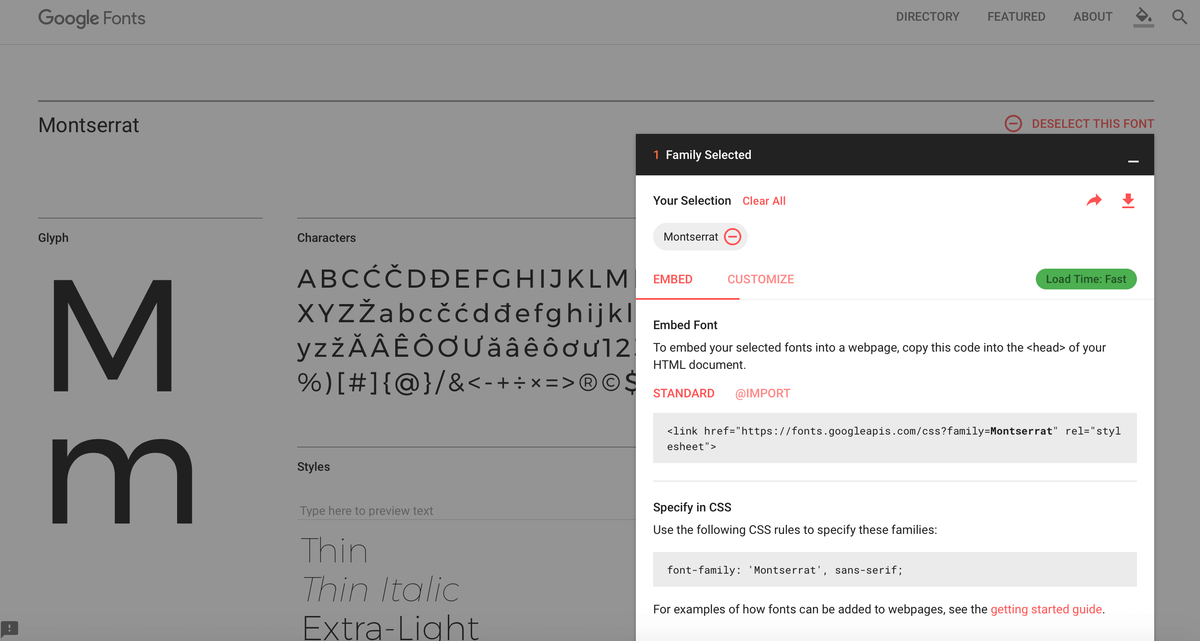
Let’s go ahead and include the font.
Just so we have a base to measure the impact of the font, here’s the current state of the project:
How to Include the Web Font
Add this to the head of the html document:
<link href="https://fonts.googleapis.com/css?family=Montserrat" rel="stylesheet">
This is a link to the Montserrat font stylesheet
Finally, use the CSS below to specify the font families:
font-family: 'Montserrat', sans-serif;
Here’s how it looks on our project:
Now, the project looks very different. The power of type (aka font)
Rounded Images and Corners
Here is the curerent state of the project, without the red borders:
Rounded Corners
Remember the box model?
Well with HTML elements, by default we get a box.

With CSS though, we can specify boxes with round corners e.g

To do this, we use the border-radius property.
For example:
div {
	border-radius: 20px
 }
This will create a border radius of 20px round all corners of the box.
Applying Rounded Borders to the Project
Please refer to the CSS pane above, you’ll notice that a 15px border radius has been added to the main content area.
How to Make Rounded Images with CSS
Rounded Images are all over the internet.
The trick is simple.
Set a border radius of 50%!
That’s the trick as you can see below
Now we have a perfect round image.
Aye!
Margin, Padding and Spacing
The design looks squashed up at the moment.
Go ahead and give some spacing like so:
	section,
  form {
  	padding: 50px 70px
  }
This will set an inner spacing of 50px within the top and bottom sides, and 70px within the left and right sides.
You may see the result below:
Looking pretty good, huh?
How to Center the Image
I know we’ve done a lot of horizontal centering.
How did we do so?
with this:
margin: 0 auto
However, when you use this on the image it does NOT work.
Se the CSS pane below:
That’s sad.
However, this will reveal a fundamental behavior of elements in CSS.
Display Types in CSS
This is very important stuff!
In CSS, most elements are categorized as either block or inline elements. This isn’t there for decoration. They really affect the default way the elements behave in browsers.
The good news is, whether block or inline, we can change this behaviour with CSS. Where Block and Inline refer to the display method of the element in question.
The default display method can be changed using the display property.
We already used the display property with CSS when we took a look at flexbox.
Here’s what we need, in this context:
display: block
or
display: inline
Why Does this Matter?
It is easy to discard this information if you don’t see why it matters.
Just before I go into why it really matters, I have added, display: block to the image below.
Now the horizontal centering works! Please refer to the CSS pane below:
I know what’s running through your mind now.
Why did the simple inclusion of display: block make the margin: 0 auto declaration active?
Simple.
The display property of an element defines how it is displayed in browsers.
By default, images are not block elements! They aren’t
What we did was make it one!
We made the image a block element, and it then honored the margin: 0 auto declaration.
The Fact
Understanding the display property is important. You will get to understand why certain CSS rules will appear to work on one element and not on another.
Knowing whether an item is set to inline or block also means that you’re aware of when it’s necessary to set widths or other properties on an element.
Been able to change the display property when it is right is also invaluable.
A Quick Look at the Behaviour of Block and Inline elements.
Getting good at this will take some time and practice.
But here’s a summary of how these elements behave.
Block Elements
- Block elements honour all margin and padding properties
- Block elements will expand in height to fit everything they contain. For example, a div will expand to contain any amount of text and images within it (in most cases)
- Block elements do not honour the CSS
vertical-alignproperty
Inline Elements
- Inline elements ignore any top and bottom margins applied
- Inline elements will disregard any
heightandwidthproperty values - These will honour the CSS
vertical-alignproperty - Inline elements only take up the space they need, and do not force a line break
This is just a summary. I’ll explain the display property in a future lesson
Centering the Text within the <section> tag
This is pretty simple. Just go ahead and add this:
text-align: center
We already discussed the text-align property in an earlier lesson.
Below is the result of that:
Font Styling
As you can see, we are pretty close to finshing up the design.
Let’s go ahead and style the fonts just a bit.
It’s basically just text sizing and color. Nothing serious.
You may find these highlighted in the CSS pane below.
Did you see the effect of this?
We have a much calmer design now.
Years back when I started out with designing, I followed a simple rule I read somewhere.
Never use the pure black or white color It is most times preferrably to use a shade of these colors.
Don’t forget the lesson on practical color tools. The first tool discussed makes it trivial to get shades of colors. In whatever color values - hex, rgb or rgba.
Line Height
The CSS line-height property is pretty simple to grasp. It sets the distance between two adjacent lines’ baselines.
The value of the line-height property should be a unitless value. This is the preferred method.
Let’s add some breathing space between the lines of the paragraph like so:
line-height: 1.8
Look at the result below, and do not forget to look at the CSS pane too (I have added a comment for you)
Conclusion
This is a good place to end this lesson.
I’m pretty sure you learned something here, as I certainly enjoyed writing this lesson 😀
In the next lesson, we will wrap up this project!