TensorBoard
Explore how to use TensorBoard to monitor and visualize the training process of TensorFlow models. Learn to track metrics like accuracy and visualize data distributions to ensure model correctness and performance during training.
We'll cover the following...
Chapter Goals:
- Learn about TensorBoard and how to track the progression of training values
- Specify training values to be shown in TensorBoard
A. Training visualizations
When training a complex neural network, it is useful to have visualizations of the compuation graph and important values to make sure everything is correct. In TensorFlow, there is a tool known as TensorBoard, which lets us visualize all the important aspects of a model.
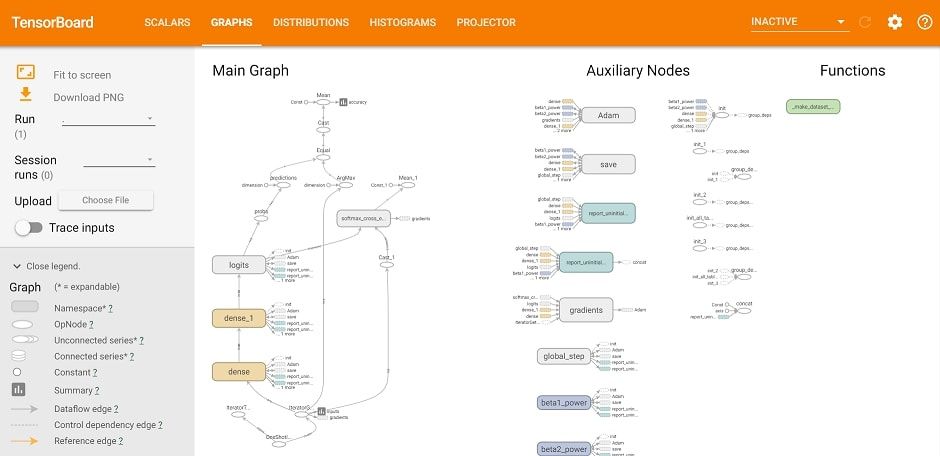
TensorBoard works by reading in an events file, which contains all the model data we want visualized. When training a model, the events file is stored in the same directory as the model checkpoint (which we’ll discuss in the next chapter). The events file automatically contains the computation graph structure, as well as the loss and training speed (in iterations per second).

You can run TensorBoard from the command line with the built-in tensorboard module (which comes as part of the TensorFlow library). You just need to specify the directory containing the events file. TensorBoard will then be running in the browser at http://localhost:6006.
B. Tracking values
Apart from the default events file values, we can also specify custom values to track in TensorBoard. To do this, we just need to call tf.summary.scalar in our code.
The function takes in two required arguments. The first argument is the label name for the visualization in TensorFlow. The second argument is the scalar (i.e. single numeric value) tensor that will be visualized. The tensor’s values will be plotted with respect to the training iterations.

We can also visualize the distribution of the values for a particular layer in the model. For example, we can view the distribution of the data in the input layer, or we can view the distribution of the weights in a particular hidden layer.
The function we use to visualize a distribution is tf.summary.histogram. This function takes in the same arguments as tf.summary.scalar.

Time to Code!
The first seven chapters of this section of the course deals with creating a classification model in TensorFlow, represented by the ClassificationModel object. The function that you’ll be working on this chapter and the next is run_model_training. This function will run training for a classification MLP model and log results to TensorBoard.
The function calls two helpers:
dataset_from_numpy: creates a dataset from NumPy datarun_model_setup: sets up the MLP model Both functions are shown below.
In this chapter, you’ll be creating another helper function called add_to_tensorboard, which adds metrics to log in TensorBoardg.
It’s useful to keep track of how the model accuracy changes while training. Therefore, we’ll want to make sure it’s plotted in TensorBoard.
Call tf.summary.scalar with 'accuracy' as the first argument and self.accuracy as the second argument.
We also want to store the distribution of the input layer (represented by inputs) in our TensorBoard. To visualize the distribution, we’ll make sure to store it as a histogram.
Call tf.summary.histogram with 'inputs' as the first argument and inputs as the second argument.