Understanding How the Single Page Is Served
Explore how a React single page application is served through index.html and the role of the Webpack development server in injecting scripts dynamically during development. Understand the differences in serving JavaScript files in development versus production, including minified bundles and caching strategies. This lesson helps learners grasp the integration of frontend assets in React apps hosted with ASP.NET Core.
We'll cover the following...
Understanding the structure of index.html in React app
We know that the single page that hosts the React app is index.html, so let’s examine this file. This file can be found in the public folder of the ClientApp folder. The React app will be injected into the div tag, which has an id of root:
Let’s run our app again in Visual Studio to confirm that this is the case by pressing “F5.” If we open the developer tools in the browser page that opens and inspect the DOM in the “Elements” panel, we’ll see this div tag with the React content inside it:

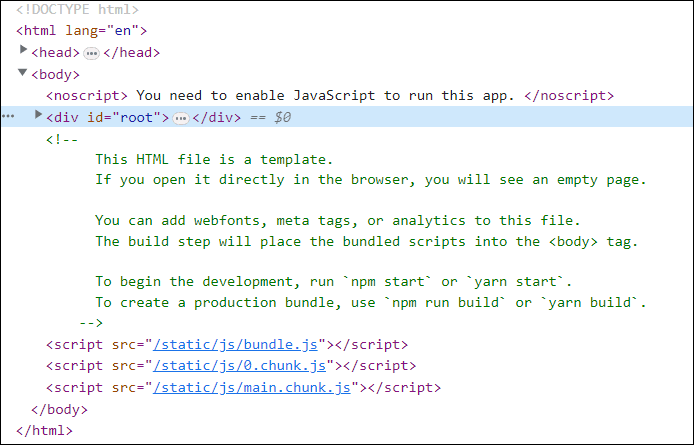
Notice the script elements at the bottom of the body element. This contains all the JavaScript code for our React app, including the React library itself. However, these script elements don’t exist in the source index.html file, so how did they get there in the served page? Webpack added them after bundling all the JavaScript together and splitting it up into optimal chunks that can be loaded on demand. If we look in the ClientApp folder and subfolders, we’ll see that the static folder doesn’t exist. The JavaScript files don’t exist either. What’s going on? These are virtual files that are created by the Webpack development server. Remember that when we run the app with Visual Studio debugger, the Webpack development server serves index.html. So, the JavaScript files are virtual files that the Webpack development server creates.
Now, what happens in production mode when the Webpack development server isn’t running? Let’s have a closer look at the app we published earlier in this section. Let’s look in the index.html file in the Build folder, which can be found in the ClientApp folder. The script elements at the bottom of the body element will look something like the following:
Carriage returns have been added in the preceding code snippet to make it more readable. The highlighted parts of the filenames may vary each time the app is published. The filenames are unique in order to break browser caching. If we look for these JavaScript files in our project, we’ll find that they do exist. So, in production mode, the web server will serve this physical JavaScript file.
If we open this JavaScript file, we’ll see it contains all the JavaScript for our app. This JavaScript is minified so that the file can be downloaded to the browser nice and quickly.
Note: Minification is the process of removing unnecessary characters in files without affecting how it is processed by the browser. This includes code comments and formatting, unused code, using shorter variable and function names, and so on.
However, the file isn’t small and contains a lot of JavaScript. What’s going on here? Well, the file contains not only our JavaScript app code but also the code from all the dependencies, including React itself.
Test yourself
We have followed all the above steps, and the resultant project is given as follows. Press the “Run” button to execute it.
Note: To see the
index.htmlfile in thebuildfolder, do the following:
After running the Code in SPA widget. Type
cd ClientApp/buildand press enter in the terminal to get in thebuildfolder.Now type
lsand press enter to seeindex.htmlfile.Type
cat index.htmland press “Enter” to see in the file.
¨& hÎ( @
((()¯®»¯¹®¬¹®¬¹®¬ª¹®«©¹ª¨¹©§¹¨§¹¯©§·®©§·®¨¦·®¨¥·®¨¥·®¨¥·®¨¦·ÛÚÙÿÙÖÕÿØÖÕÿØÖÔÿØÖÔÿØÕÔÿØÕÔÿØÕÓÿØÕÓÿØÔÓÿ×ÔÓÿ×ÔÒÿ×ÔÒÿ×ÔÒÿ½º¹ÿåãâÿåãâÿäâáÿäáàÿãàÞÿãÞÝÿâÝÛÿâÝÚÿâÛÙÿâÚØÿáÚ×ÿáÙÖÿáÙÕÿáÙÕÿáÙÕÿáÙÕÿª¥£¿æäãÿýøöÿüøöÿüøõÿü÷õÿü÷ôÿûöôÿûõóÿûõòÿûõòÿúôñÿúôðÿúôðÿúóïÿÚÔÑÿþüûÿýûúÿýúùÿýùøÿüøöÿü÷ôÿûõóÿûôòÿúóðÿúòïÿúòîÿùñíÿùñíÿùñíÿùñíÿùñíÿ»µ³¿æäãÿüù÷ÿñâÍÿæÊ ÿæË¡ÿåÊÿåÉÿÞлÿÜÙØÿÙÖÕÿØÖÕÿØÖÔÿØÕÔÿØÕÔÿ¾¼ºÿþüûÿþûúÿýûùÿýúøÿüøöÿü÷õÿûöóÿûõòÿûôñÿúóðÿúòïÿúòîÿùñîÿùñíÿùñíÿúñîÿ»¶³¿æäãÿüù÷ÿæË¢ÿÎCÿÏGÿÍAÿÍBÿÏ´ÿýøöÿýøöÿüøõÿüøõÿü÷ôÿûöôÿÛ×ÕÿþüûÿþüûÿýûúÿýúùÿîëéÿîêèÿîéçÿíèæÿíçäÿíæäÿìåãÿåÞÜÿúòïÿúòîÿúòïÿúòïÿ»¶´¿æääÿýùùÿçÌ¥ÿÐJÿÑPÿÓ¤XÿÓ¤XÿѺÿüù÷ÿüù÷ÿüùöÿüøöÿüøõÿü÷ôÿÜØÕÿþüüÿþüûÿýûúÿýúùÿïëêÿõñðÿîêèÿôðíÿíèåÿíçäÿíæäÿìæãÿúóðÿúóðÿúóðÿúóðÿ»·µ¿æåäÿýúùÿçÍ¥ÿÏIÿÔ¦\ÿÑNÿÐKÿжÿüù÷ÿüù÷ÿüù÷ÿüùöÿüøõÿüøõÿÜØÕÿþýüÿþüûÿþûûÿýûúÿïìëÿõòðÿîêèÿõðîÿíéæÿíèåÿíçåÿíçäÿûôñÿûôñÿûôñÿûôñÿ¼¸¶¿æåäÿýûùÿèΧÿÑLÿÕ§^ÿÑNÿÐLÿжÿýùùÿýùùÿýùøÿôïìÿìåáÿëäàÿÎÈÄÿþýüÿþüüÿþüûÿýûúÿöóòÿïìêÿîëéÿîêèÿîêèÿîéçÿíèæÿíèæÿûõóÿûõóÿûõóÿûõóÿ¼¸·¿ææåÿýüúÿèϨÿÑNÿÕ¨`ÿÑPÿÐMÿзÿýúùÿýúùÿýúùÿôïíÿìåâÿëåáÿÏÉÅÿþýýÿþýüÿþüûÿþüûÿýûúÿýúùÿýùøÿüù÷ÿüøöÿü÷õÿü÷õÿü÷ôÿüöôÿüöôÿüöôÿü÷ôÿ½¹¸¿ææåÿýüûÿèÏ©ÿÑMÿÖ¨`ÿÑPÿÐMÿжÿýûùÿýûùÿýúùÿôðíÿìæâÿìåáÿÎÉÆÿ÷ööÿ÷ööÿ÷öõÿ÷õôÿ÷ôóÿöôóÿöóòÿöóñÿöòñÿõòðÿõñïÿõñïÿõñïÿõñïÿõñïÿõñïÿ³±°¿ææåÿýýûÿéÑ«ÿÓ¡Uÿ׫fÿÓ¢VÿÒ SÿѸÿýüúÿýüúÿýûúÿôñíÿìçâÿìæâÿÏÉÆÿððïÿðïïÿðïîÿðïîÿðîíÿðííÿïíìÿïíìÿïìëÿïìëÿïìêÿïëêÿîëêÿîëêÿîëêÿïëêÿ´²±¿çææÿþýýÿéѬÿÒQÿשcÿÓ SÿÒPÿѸÿýüûÿýüûÿýüúÿôñîÿìçâÿìæâÿÏÉÆÿÙØØÿÙØ×ÿØ××ÿØ××ÿØ×ÖÿØÖÕÿØÖÕÿØÕÕÿ×ÕÕÿ×ÕÕÿ×ÕÔÿ×ÕÔÿ×ÕÔÿ×ÕÔÿ×ÕÔÿ×ÕÔÿ¥££¿çææÿþýýÿêÒ®ÿÕ£YÿÙjÿÕ¥ZÿÔ£XÿÒºÿýýûÿýýûÿýüûÿôñïÿìçãÿìçâÿÏÊÆÿåääÿÎÍÍÿØØ×ÿØ××ÿþýüÿþüüÿþüûÿþüûÿþûûÿýûúÿýüûÿýûúÿýûúÿýûùÿðîíÿãááÿ««¿ççæÿÿþýÿëÒ®ÿÕ¢WÿÙ¬iÿÕ¤YÿÔ¢WÿÒ¹ÿþýýÿþýýÿþýüÿôòñÿìçäÿìçäÿÎÊÇÿåääÿåääÿåääÿäääÿäääÿääãÿääãÿäããÿäããÿäããÿäääÿäããÿäããÿäããÿäããÿäããÿ®¿çççÿþþþÿëÓ°ÿÖ¤\ÿÚ®mÿצ^ÿÕ¤[ÿÒ»ÿþýýÿþýýÿþýýÿõòñÿìèåÿìçåÿÎÊÈÿåååÿåååÿåååÿåååÿåååÿ²²²ÿÑÑÑÿÑÑÑÿÑÑÑÿÑÑÑÿ²ªÿÔÏÌÿÛ×ÕÿÛ×ÔÿÛÖÔÿ...#çççÿþþþÿëÓ±ÿÖ£[ÿÚkÿÖ¤\ÿÕ£YÿÓºÿÿþýÿÿþýÿþýýÿõòñÿìèæÿìèåÿ×ÓÑÿÎÍÌÿÎÍÌÿËÊÈÿËÉÈÿËÉÈÿº¸·ÿËÉÈÿËÉÈÿËÉÇÿËÈÇÿÍÇÃÿóíéÿûöôÿûöóÿûõòÿµµµçççÿÿÿÿÿíÕ³ÿÙ§bÿÜ°rÿÙ§cÿئ`ÿÔ»ÿþþþÿþþþÿþýýÿõòñÿìèæÿìèæÿìèåÿôòðÿôòðÿìçäÿìçãÿìçâÿìæâÿìåâÿìåâÿëåáÿëäàÿëäßÿóíêÿü÷ôÿûöôÿûöôÿ···çççÿÿÿÿÿìÔ²ÿפ^ÿÛ®oÿØ¥`ÿפ]ÿÓºÿþþþÿþþþÿþþþÿõóñÿìèæÿìèæÿìèæÿõòñÿõòñÿìçäÿìçäÿìçãÿìçâÿìæâÿìæâÿìåâÿìåáÿëåáÿôîëÿüøõÿü÷ôÿûöôÿ¹¹¹çççÿÿÿÿÿíÕµÿÚ¨eÿÞ²wÿÞ´yÿÞ²wÿØĨÿÿÿÿÿÿÿÿÿÿÿþÿöôòÿíéæÿìèæÿìèæÿõòñÿõòñÿìèåÿìçäÿìçäÿìçãÿìçâÿìæâÿìæâÿìåâÿìåáÿôïëÿüøõÿüøõÿü÷ôÿ»¼»çççÿÿÿÿÿíÔ´ÿÙ¦aÿݯrÿÙ¦aÿØ¥_ÿÔºÿÿÿÿÿÿÿÿÿÿÿþÿõóóÿìéæÿìéæÿìèæÿõòñÿõòñÿìèæÿìèåÿìèäÿìçäÿìçäÿìæãÿìæâÿìåáÿìåáÿôïìÿüù÷ÿüùöÿüøöÿ½½½çççÿÿÿÿÿíÕ¶ÿÛ©gÿÞ²wÿÛªiÿÚ©gÿÕ½ÿÿÿÿÿÿÿÿÿÿÿÿÿöôóÿìêæÿíéæÿìéæÿõóñÿõóñÿìèæÿìèåÿìçåÿìçãýìèäýìçãÿìæâÿìåáÿëäáÿôïìûüù÷ùüù÷ûüøöû¾¾¾çççÿÿÿÿÿíÕµÿÚ§dÿÞ±uÿÚ©fÿÚ§dÿÕ¼ÿÿÿÿÿÿÿÿÿÿÿÿÿöôóÿíéæÿìéæÿìéæÿõôñÿõóñÿíêçÿíêçÿíêçÿíêçÿíêçÿìèåÿìçãýìæáÿëäáÿóïëÿüøõÿüøõÿü÷ôÿÀÀ¿çççÿÿÿÿÿîÕ·ÿÛ¨gÿÞ²wÿÛªjÿÛ©gÿÕ½ÿÿÿÿÿÿÿÿÿÿÿÿÿöôóÿíêçÿìéçÿìéçÿõôòÿõôòÿíêçÿíêçÿíêçÿíêçÿíêçÿìêæÿìéåÿìèãýìèäÿôñîÿüù÷ÿüùöÿøöôÿÁÁÁçççÿÿÿÿÿîÖ·ÿÛ©iÿß²yÿÜ«kÿÛªiÿÕ½ÿÿÿÿÿÿÿÿÿÿÿÿÿÿÿÿÿÿÿÿÿÿÿÿÿÿÿÿÿÿÿÿÿÿÿÿÿÿÿÿÿÿÿÿÿÿÿÿÿÿÿÿÿÿÿÿÿÿÿÿÿÿÿÿÿÿÿÿÿÿÿÿÿýüüÿûúùÿøøøÿòòòÿÂÂÂçççÿÿÿÿÿîÕ·ÿÛ¨iÿß²yÿݬnÿÜ«mÿ×Â¥ÿÿÿÿÿÿÿÿÿÿÿÿÿöôóÿíêçÿíêçÿíêçÿíêçÿíêçÿíêçÿíêçÿíêçÿíêçÿíêçÿìéæÿëèåÿéæãÿêçäÿòñïÿùùùÿóóóÿëëëÿÃÃÃçççÿÿÿÿÿîÖ¸ÿܪlÿÞ®rÿß²yÿàµ~ÿÛ˵ÿÿÿÿÿÿÿÿÿÿÿÿÿöôóÿíêçÿíêçÿíêçÿíêçÿíêçÿíêçÿíêçÿíêçÿíêçÿìéæÿêçäÿêçäÿãàÝÿàÝÚÿéçæÿíííÿãããÿÏÏÏÿÚÚÚÿÿÿçççÿÿÿÿÿîÖ·ÿܨiÿÝ«lÿÜ©iÿÜ©jÿÕ½ÿÿÿÿÿÿÿÿÿÿÿÿÿöôóÿíêçÿíêçÿíêçÿíêçÿíêçÿíêçÿíêçÿíêçÿëèåÿêçäÿêçäÿêçäÿÂÀ¿ÿ¾¾¾ÿ¿¿¿ÿºººÿ¾¾¾ÿÛÛÛ¿ÿÿÿÿÿÿçççÿÿÿÿÿöëÜÿîÕ·ÿîÖ¸ÿîÖ·ÿîÖ¸ÿßÓÄÿÿÿÿÿÿÿÿÿÿÿÿÿöôóÿíêçÿíêçÿíêçÿíêçÿíêçÿíêçÿíêçÿíêçÿëçåÿêçäÿëçåÿëçåÿÀ¾½ÿþþþÿ÷÷÷ÿáââÿâââ¿ÿÿÿÿÿÿÿÿÿçççÿÿÿÿÿÿÿÿÿÿÿÿÿÿÿÿÿÿÿÿÿÿÿÿÿçççÿÿÿÿÿÿÿÿÿÿÿÿÿÿÿÿÿÿÿÿÿÿÿÿÿÿÿÿÿÿÿÿÿÿÿÿÿÿÿÿÿÿÿÿÿÿÿÿÿüüüÿüüüÿüüüÿúúúÿÅÅÅÿöööÿàààÿâââ¿ÿÿÿÿÿÿÿÿÿÿÿÿâââÿîîîÿîîîÿîîîÿîîîÿîîîÿîîîÿßßßÿÿÿÿÿÿÿÿÿÿÿÿÿÿÿÿÿÿÿÿÿÿÿÿÿÿÿÿÿÿÿÿÿÿÿÿÿÿÿÿÿÿÿÿÿÿÿÿÿýýýÿýýýÿúúúÿõõõÿÃÃÃÿâââÿååå¿ÿÿÿÿÿÿÿÿÿÿÿÿÿÿÿÿÿÿÿÿÿÿÿÿÿÿÿÿÿÿÿÿÿÿÿÿÐÐÐÿÿÿÿÿÿÿÿÿÿÿÿÿÿÿÿÿÿÿÿÿÿÿÿÿÿÿÿÿÿÿÿÿÿÿÿÿÿÿÿÿÿÿÿÿÿÿÿþþþÿûûûÿõõõÿíííÿÊÊÊÿäää¿ÿÿÿÿÿÿÿÿÿÿÿÿÿÿÿÿÿÿÿÿÿÿÿÿÿÿÿÿÿÿÿÿÿÿÿÿÿÿÿÔÔÔïïïÿîîîÿîîîÿîîîÿîîîÿîîîÿîîîÿîîîÿîîîÿîîîÿîîîÿîîîÿíííÿêêêÿæææÿáááÿÜÜÜ¿ÿÿÿÿÿÿÿÿÿÿÿÿÿÿÿÿÿÿÿÿÿ( @ÔÒÑÏÍÌ
ÏÌË
ÏÌË
ÏÌÊ
ÎËÊ
ÎËÉ
¿½¼¹ÎÌËÝÍÊÉÝÌÈÆÝËÆÄÝÌÅÃÛËÅÁÛËÄÁÛ¶°®ÁñîìÿôçÖÿñáÊÿîáÐÿêæäÿéåãÿéäâÿåâàÿýûúÿüù÷ÿûöôÿúôñÿúòïÿùñíÿùñíÿß×ÔßñîîÿÛ³uÿÐLÿЫnÿüøöÿüøõÿü÷ôÿìêèÿýûúÿõóñÿïëéÿîéçÿìæäÿñêçÿúòïÿßÙÖßñðîÿܵxÿÒ¢VÿЩmÿüùøÿúöôÿôîëÿéæäÿþüûÿøõôÿðíëÿïëéÿíèæÿôîëÿûõòÿàÛÙßññïÿܶ{ÿÓ£XÿЪnÿýúùÿøõóÿëåáÿäáßÿúùøÿúø÷ÿùöõÿùõôÿøôòÿøôòÿøóñÿÝÙ×ßòññÿÞ¸ÿÕ¥\ÿѬqÿýüúÿøöôÿìæâÿÚÖÕÿäããÿäââÿäááÿãáàÿãàßÿãàßÿãàßÿËÉÈßòòñÿàºÿרaÿÓ®uÿýýüÿù÷öÿìçãÿÙ×ÕÿÜÛÛÿçççÿñðïÿñïïÿñïïÿðïîÿíëëÿÌËËßòòòÿá»ÿØ©dÿÔ¯xÿþýýÿù÷÷ÿìçåÿÖÔÒÿÙØ×ÿØ×ÖÿÂÁÀÿÎÍÌÿÇÃÁÿçâßÿëæãÿSóóóÿâ½ÿÚ«iÿÕ°{ÿþþþÿùø÷ÿìèæÿðíëÿðìêÿìçãÿìæâÿëåáÿëäàÿøòïÿûöôÿ³³³Eóóóÿã¾ÿܯqÿص
ÿÿÿÿÿúùøÿìéæÿðíëÿðíëÿìçäÿìçãÿìæâÿìåáÿøôñÿüøõÿ¶·¶Eóóóÿä¾ÿÜoÿײÿÿÿÿÿúùùÿìéæÿñîëÿñîìÿìèæÿìèåýìçãÿëåáÿøôñýüøöýºº¹Eóóóÿä¿ÿÝ®qÿسÿÿÿÿÿüüüÿõôóÿøöõÿø÷õÿöôóÿöôóÿõôòÿõóñÿúøöÿøöõÿ¼¼¼Eóóóÿå¿ÿÞ¯uÿÜ»ÿÿÿÿÿúùùÿíêçÿíêçÿíêçÿíêçÿìéæÿêçäÿåâßÿðïïÿäääÿÌÌÌCóóóÿëÏÿåÀÿßÄ¡ÿÿÿÿÿúùùÿíêçÿíêçÿíêçÿíêçÿêçäÿêçäÿÏÏÎÿÔÔÔÿÒÒÒÿÿÿíííÿöööÿöööÿíííÿÿÿÿÿÿÿÿÿÿÿÿÿÿÿÿÿÿÿÿÿÿÿÿÿüüüÿùùùÿØØØÿâââÿÿÿÿÿÿÿÿÿÿÿÿÿÿÿÒÒÒAöööÿöööÿöööÿöööÿöööÿöööÿôôôÿêêêÿ×××ÿÿÿÿÿÿÿÿÿ