Integrate Tools with Agents
Explore how to integrate external tools with AI agents to enable function calling and dynamic problem solving. Learn how an AI agent suggests actions, how you execute them, and how to manage structured outputs for reliable, trusted data interactions. This lesson guides you through wiring tools to language models, handling tool call lifecycles, and using schemas to ensure precise communication between the model and your custom code.
So now that we’ve got our LLM speaking fluent Pydantic—clear, structured, and reliable—what’s next? Well, structure’s just the start. The real fun begins when you let your model do things, not just think or talk, but act. That’s where tools come in.
Imagine this: the model doesn’t know the current weather. It can’t look up a stock price. It can’t query your internal knowledge base. But you can give it those powers by letting it call functions, trigger APIs, or run snippets of custom logic. These are tools. Once your model can use tools, it’s no longer just answering questions; instead, it’s solving problems.


Let’s break down how that works, and how to build your own tools from scratch.
How does function calling actually work?
Alright, time to open the toolbox. Function calling is one of the most important mechanics in modern agentic workflows. However, not every model ships with native function-calling support, so double-check your LLM or provider’s docs before you rely on it.
Function calling allows the model to step beyond passive text generation and actively interact with the external world—our application, APIs, and custom code. Here’s how it works:
You can define functions, real Python functions, and register them as tools that the LLM can “see.”
Based on the prompt and the conversation, the model might decide to call one of these functions instead of (or in addition to) just generating plain text.
That’s the core mechanic. You’re giving it options, and it chooses what to use, like a player scanning their hand in a card game. This is the backbone of agentic systems. When we say “tools”, we’re talking about this specific capability: letting the LLM call into your code to extend what it knows and what it can do. Whether it’s a database query, a search engine entry, or sending a Slack message, it’s all just a tool to the model. When making a request to generate a model response, we can enable tool access by passing tool definitions via the tools parameter in our API call. This lets the model know what’s available to it.
But here’s the key idea, and it’s one many folks miss at first: The LLM does not actually call your function!

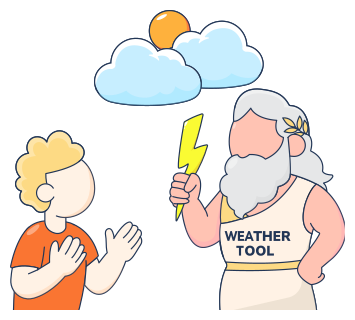
Let’s say that again: the model doesn’t invoke the code directly. What it does is inspect the list of tools you’ve made available, the names, the parameters, and the descriptions. If it thinks one is appropriate based on the conversation, it replies with a set of arguments for that function. That’s it. It says, “Hey, based on what’s going on, I think you should run get_weather(city='Seattle').” It’s still up to you, the developer, to wire that into your loop and actually run the function using those parameters. The model suggests the action, and your code executes it. That’s the fundamental dynamic. The model acts as a strategist, effectively communicating, “Here is the course of action I would take if I could execute it—now implement it accordingly.”
Once that tool runs, you return the result to the model in the next turn, and the loop continues.
We’ll walk through some clean examples shortly, but keep that principle in your back pocket: function calling is about intent detection and argument generation. The LLM recommends. You execute. That’s how you build smart, modular, agentic systems that stay grounded and capable.
How does the execution flow?
Let’s see what it actually looks like to wire up a tool, hand it to the model, and walk through the full tool call lifecycle, from the user message to the final AI-generated response. We’ll start simple: let’s say you have a function that fetches the current temperature at a specific geographic location. This is a perfect use case for tools, something the model can’t know off the top of its head, but can access through your custom code.
Let's break it down. This is a simple Python function. It takes a latitude and longitude, makes a GET request to a weather API, and returns the current temperature in Celsius.
Here’s the important bit: this function expects coordinates. Not “New York,” not “Paris”, numbers. Fortunately, modern models can resolve city names to coordinates internally, so we can safely delegate that to the LLM. But you need to make sure your tool schema clearly says what you want: latitude and longitude. Precision matters. Now we’re going to call the model and tell it that fetch_temperature is available as a tool. We’ll also ask a weather-related question and see what it does.
Let’s unpack this before moving further. If this dictionary feels dense, don’t worry, it’s just structured metadata telling the model what’s available and how to use it. Once you see how it fits, it clicks:
Lines 6–9: This tells the model:
This tool is a
function(not a file, image, or web search).The
namethe model will use to refer to it.The
descriptionthe model will use to see if it can be helpful.
Lines 10–19: Now we move into input schema territory:
The
parametersdefines what kind of inputs the function expects.The
typedefines that the model must pass a structured object (like a JSON dict).The
latandlonparameters must be a number (not a string like"Tokyo").The
requiredparameter states that to use the tool, both fields are mandatory. The model can’t skip them.The
additionalPropertiesstates that the model must not invent extra parameters.The
strictparameter beingtruewill ensure function calls reliably adhere to the function schema, instead of being best effort.
In short, we’ve just exposed a tool to the model (with precise input requirements). Then, we’ve sent a user message and asked the model to generate a response that might include a tool call.


When we run the code, we can see that the model inspects the available tools and, based on the context, returns a tool call intent. The model figured out that Tokyo’s coordinates are approximately (35.6764, 139.6500) and generated the arguments for our function. This is the model deciding how to act. But remember, the model doesn’t execute anything. It’s giving you, the engineer, the keys.
Now we parse the arguments and run the actual function:
Let’s go through a step-by-step guide on what’s happening here:
first_responseis the result of our initial call to the LLM with tools enabled..output[0]retrieves the first tool call from the response, which will be of typeResponseFunctionToolCall.We fetch the
argumentsfrom theResponseFunctionToolCallobject and use thejson.loads()method to parse them into a neat JSON format.tools_argscontains all the info we need to simulate the LLM saying: “Hey, I want you to runfetch_temperatureusing these arguments.”
We can now conclude that even though the LLM decides what function to call and with what parameters, it doesn’t actually run your Python function—that part is up to you. And just like that, the model’s request becomes real data. You’ve now got the current temperature for Tokyo in hand. But we’re not done yet, right? Now it’s time to pass the result back to the model so it can finish the job and generate a user-facing message.
Let’s break down what's happening here.
Line 1: We re-insert the model’s own tool-call message into
conversation. This preserves the chain of thought the model expects: think of it as echoing the model’s move back onto the game board so everyone can see it.tool_suggestionis the assistant’s message that effectively says, “I’d like you to runfetch_temperature(lat, lon)with these args.”Lines 2–6: Now it’s the engineer’s turn. We add a
function_call_outputmessage that delivers the real data the model asked for. In other words: “Here are the results you requested.”“type”: “function_call_output”marks this as a tool result, not a normal chat.“call_id”: tool_suggestion.call_idlinks the output to that exact tool call, so the model knows which request this response belongs to.“output”: str(temp_result)is the payload—the temperature reading we just fetched.
By feeding the model both its original request and our function’s output, we close the loop. The assistant now has access to up-to-date, real-world data within its context window, enabling it to generate a final, well-informed response—free from inaccuracies and information gaps. If you run the code, the snippet works as expected, but notice that there are two downsides:
Every run gives you a slightly different natural-language answer. Great for chat, but unreliable for a code that expects a fixed shape.
The output is plain text. If you want to drop that data into a dashboard or chain it to another tool, you’re back to string-parsing again.
This is where we bring back our old friend, Pydantic.
How to use structured outputs with tool calls?
We want our LLMs to speak in types—not just text. When you’re building something serious, it’s not enough to get the right idea—you want structure: values you can trust, inspect, and pass downstream. That’s where structured outputs shine. Right now, our model might be returning decent responses, but we want to formalize that reply. Let’s say our ideal output includes:
A numeric temperature (so you can use it in logic, dashboards, logs).
A fixed, friendly message (for user-facing summaries).
We’ll express that required format to the model using a Pydantic schema, the same way we’d define expected types anywhere else in production code.
What we’re saying to the model is: “Whatever you say next, it has to look like this.” No meandering, no vague phrasing, just a float and a string, and if it doesn’t match, we catch it. This is what it will look like:
Wait, the code doesn't work! We get an error that says KeyError: 'function'. Why? Well, because we gave the model a flat-style tool spec (name, parameters, strict at the top-level) and then asked the structured-output endpoint beta.chat.completions.parse() to process it. That endpoint only speaks the newer nested dialect, where everything is wrapped inside a "function": { … } block.
The Responses API (responses.create) and the Chat Completions API (chat.completions.create / beta.chat.completions.parse) are two separate entry points for talking to OpenAI models. The .beta namespace flags features that are still in preview—in this case, the structured-response parse helper. When the OpenAI SDK graduates this helper to a stable release, you’ll be able to drop the .beta prefix and call it directly from client.chat.completions. Until then, the beta path is required so early adopters can experiment without making changes to the main API surface.
In other words, we gave the model a wrench meant for the responses.create pathway and then asked the structured parser to tighten bolts with it. But the parser couldn’t find the wrench, and the whole system collapsed. Before we fix it, remember the rule:
Flat schema →
responses.create.Nested schema →
chat.completions.create+parse().
Mixing the two is how we summon that KeyError. Let’s fix it step-by-step:
The first step is to wrap our tool in a
"function"block instead:
Use the same chat family for both turns! Why?
chat.completions.createandbeta.chat.completions.parseshare the same schema expectations, which are different fromclient.responses.create. No mismatches equal no breaks.
Make sure you also capture the model’s tool intent correctly. Pull out the tool call with the new accessor too.
Append intent and result with new roles to include both the tool call and the result in the conversation:
And now, for a little fun, we want the model to always say the same thing in the message. So we turn our Pydantic schema into a hard contract using
Literal:
This tells the model: no improvisation. Say this, or validation fails. Finally, we rerun the model call with the structured parser:
And there you go, if everything’s wired up right, the model replies with your float and our exact thank-you message, every time. That’s structured output with tool calls: types, trust, and total control.
Final thoughts
Let’s set the record straight before we wrap up. Chat Completions is the long-standing, industry-standard endpoint and will continue to be fully supported. Responses is the new higher-level API that simplifies workflows involving tool calls, code execution, and state management. Both endpoints manage conversation states differently. Mix stateful Responses calls with stateless Chat Completions payloads (or vice-versa) and you’ll invite KeyErrors, missing IDs, and other validation headaches.
This stuff is always in motion. Specs tighten, helpers change, models evolve. The only way to stay is to keep one browser tab glued to the OpenAI API docs and treat them like patch notes for your favorite game. Next time something breaks, it’s probably because the contract shifted, not because you forgot a comma.
The API will change; but once you are done, your agents will persist.