The User’s Application
Explore how to implement the state reducer pattern in React to control expandable UI behavior. Learn to reset state after a user action and prevent further toggling, ensuring precise state management for complex interactions.
We'll cover the following...
Scenario
Our user is a hacker who has found proof of a big conspiracy on Mars. To share this with the world, they want to use our useExpanded hook and the default UI elements we provide to build the following expandable view:
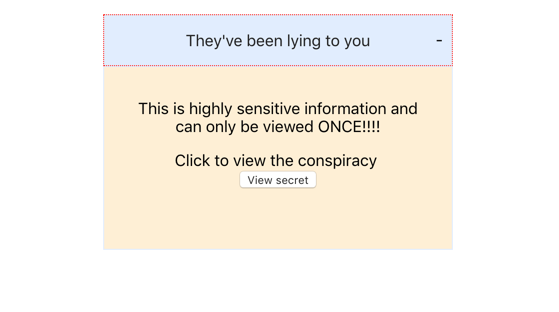
That’s the easy part.
What’s more interesting is that the hacker only wants a reader to view this secret once. It’s such a big conspiracy.
The hacker’s goal is that whenever the user clicks the button to view the secret, the expandable content is reset to the default unexpanded state. After that, the reader can click all they want on the header but the content won’t be expanded.
Do you see why the user needs the state reducer pattern?
Calling Toggle When Header is Clicked
By default, whenever the Header element is clicked, the hacker calls the toggle function.
Internally, the toggle function always toggles the expanded state property. The problem is, when the reader has viewed the secret, the hacker wants further clicks on the Header not to trigger a state update.
We need to cater to this use case.
Viewing the Secret Document
In the meantime, here’s how the hacker has handled viewing the secret document.
They attach a click handler to the button which points to the reset callback we provide.
The reset callback resets the expanded state to the initial expanded state of false provided by the hacker.
The initial state provided by the hacker is false — this means the expandable content is closed after the click.
Good.
Within the useEffectAfterMount hook, they then perform a side effect, opening the secret in a new window based on the resetDep which changes when the user clicks the button.
So far the hacker is happy with the API we’ve provided. We just need to handle their last use case for preventing further state updates on clicking the Header element after a reader has viewed the secret once.
What We Have So Far
Have a look!
.Expandable-panel {
    margin: 0;
    padding: 1em 1.5em;
    border: 1px solid hsl(216, 94%, 94%);;
    min-height: 150px;
  }
In the next lesson, we’ll apply the state reducer pattern to our application.